

Run Your F45 Playoffs 500 with Fitlo: A Step-by-Step Guide
18th September 2025
Here's a quick guide running through the how to use Fitlo on the day of an F45 Playoffs 500 competition.
Getting Started: Checking In Participants
When your competitors arrive, navigate to the Participants tab where you'll see a complete list of everyone who has registered.
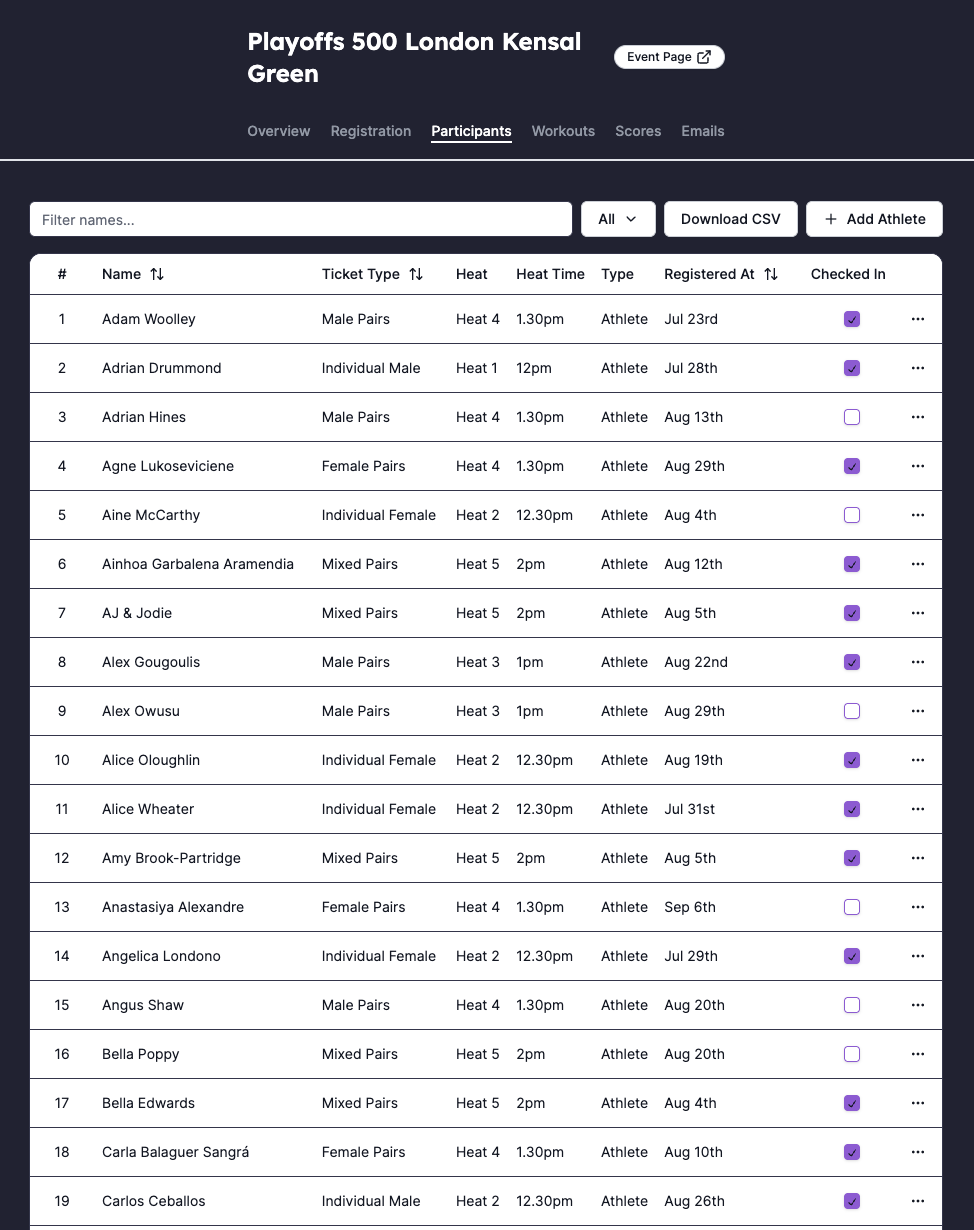
To check someone in, simply search for their name and click the check-in checkbox.
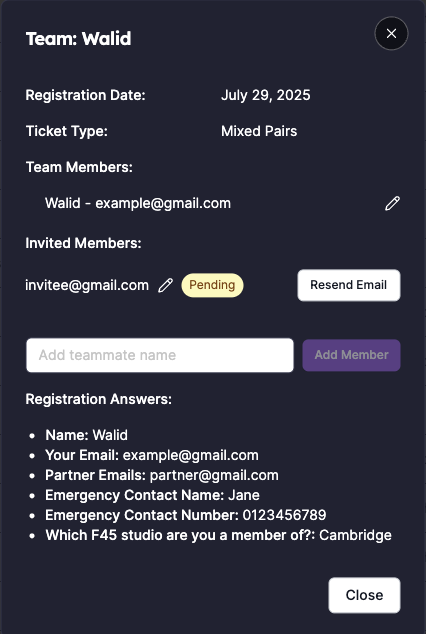
Sometimes athletes don't include their partner's name when registering or they've made a typo, so you can make a quick edit by:
- Finding the participant in the list
- Clicking the three dots at the end of their row and select "View More Info"
- In the modal window, edit their details as needed
Adding New Athletes
If someone hasn't registered but needs to participate, you can quickly add them in the Participants tab:
- Click the Add Athlete button
- Select Add Manually
- Enter the athlete's name and choose their ticket type
If someone has purchased the wrong ticket type, you can remove them from the list, then re-add them manually with the correct ticket type.
The Heart of the Competition: The Scoring Process
To begin entering scores, go to the Scores tab.
When an athlete completes the workout, click the Add Scores button. This opens a modal where you can input the results for each station. As you enter the reps for each exercise, Fitlo automatically totals them up, giving you an instant final score.
Handling Timed Scores
In the F45 Playoffs 500, some athletes will complete the 100 reps before the time is up. Fitlo makes it easy to record this achievement.
- In the "Add Scores" modal, select "Is timed score"
- Enter the time it took them to complete the 100 reps
- The system automatically registers this as 100 reps, but uses the time for tie-breaking purposes
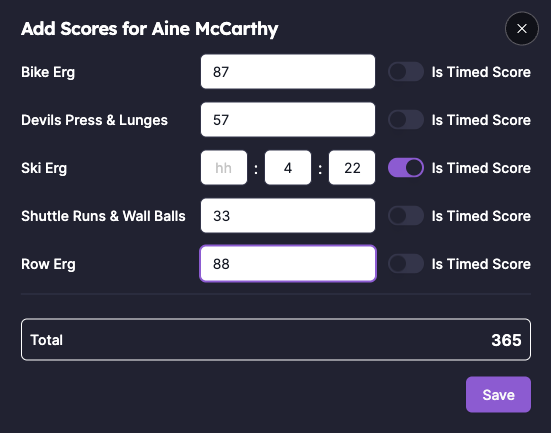
If an athlete completes all five stations within the allotted time, they get a timed score instead of a rep score (see example here). Anyone with a timed score is ranked higher than everyone with reps.
Engaging the Athletes: Leaderboard Management
From the Scoring page, you can access the leaderboard by clicking the Leaderboard button.
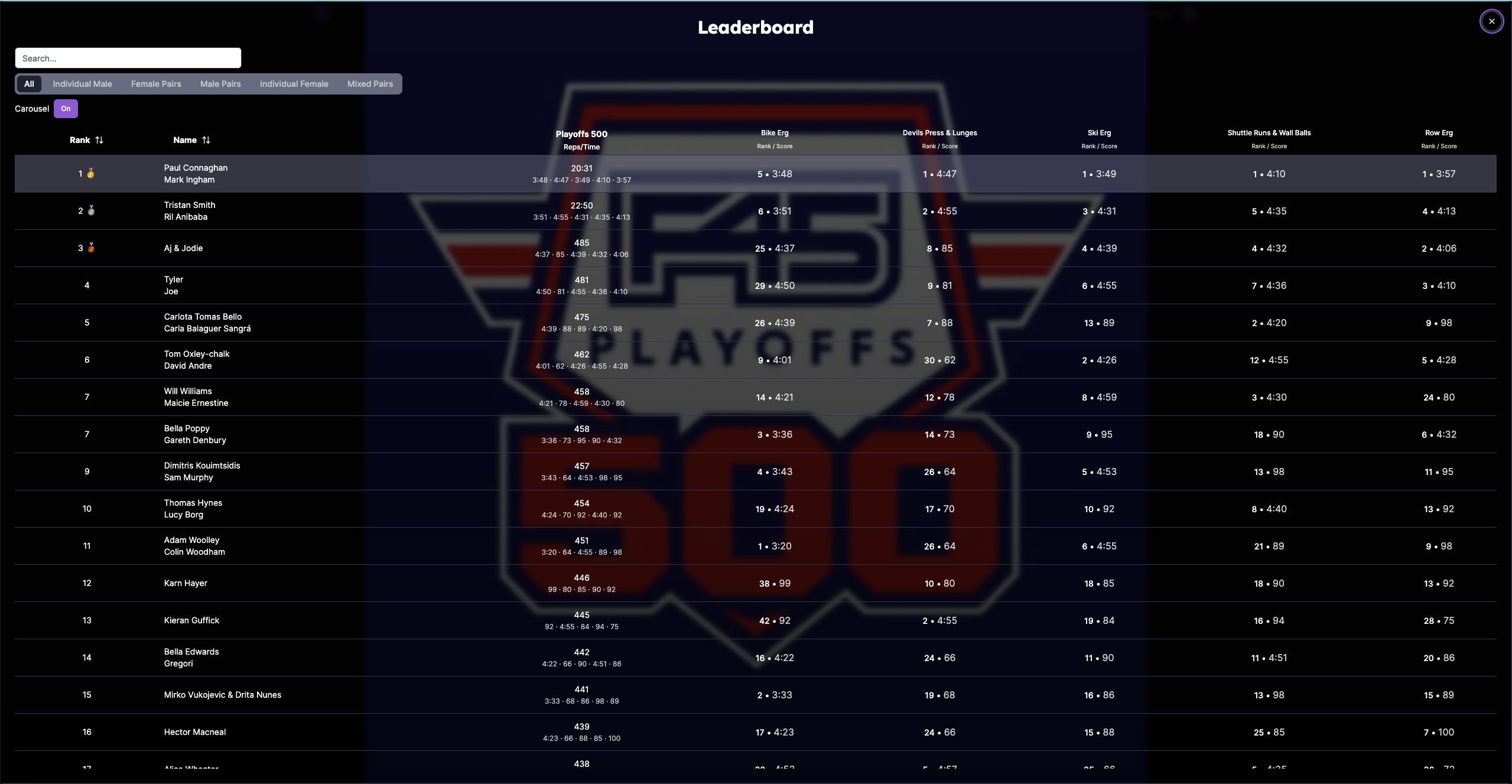
To create a big-screen experience, project the leaderboard onto a large TV or monitor. For a clean, full-screen view on a Mac, simply press Cmd + Shift + F. This removes browser toolbars and other distractions, creating a professional display for your event.
The leaderboard is more than just a list of names and scores. Clicking on any participant's name opens a customized F45-branded score page. Athletes love taking pictures next to their official results, creating shareable social media content which promotes the studio.
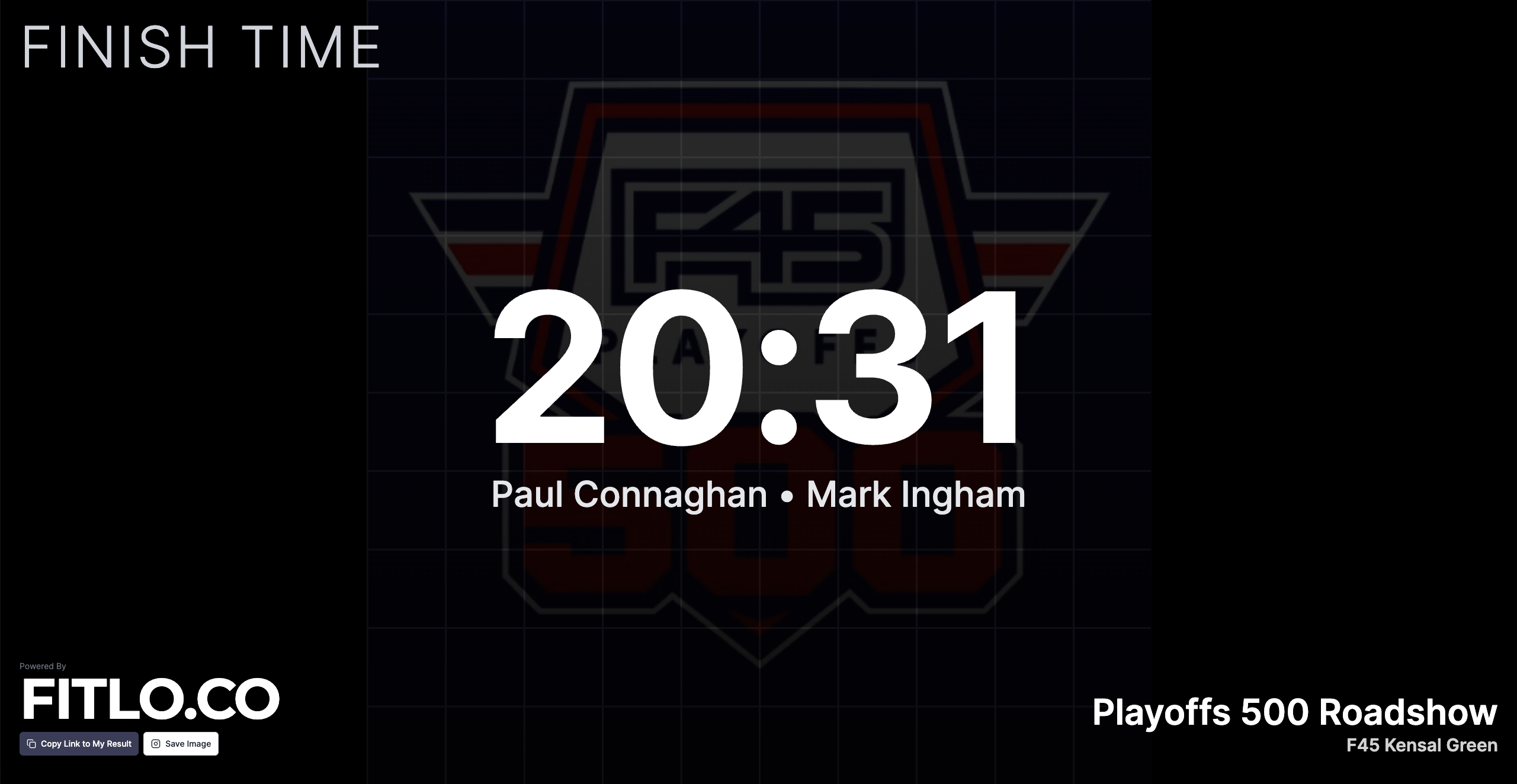
All scores in Fitlo remain fully editable—nothing is ever final until you decide it is. If you need to update a score, you can do so at any time.
Athlete Analytics
Athletes can then analyse their results and see how they compared with their friends. Fitlo provides a breakdown on how they did at each station, comparing their percentile within their category and the Playoffs 500 overall.
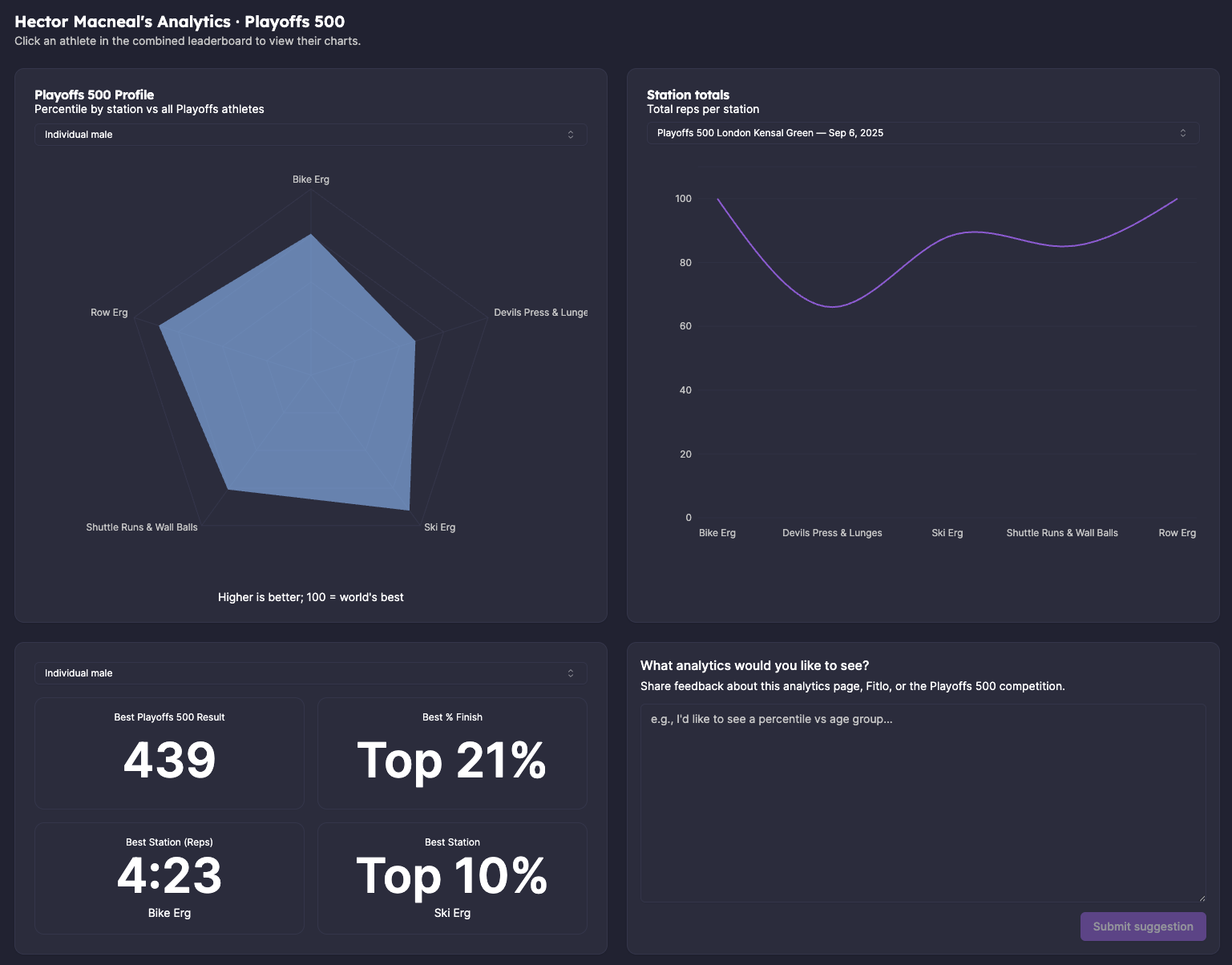
You can check out our athlete analytics here and find the live Playoffs 500 leaderboard here!
Summary
This guide covers the key steps for running an F45 Playoffs 500 competition using Fitlo, but if you have any questions, send over an email to hello@fitlo.co and we'll get back to you asap.
Enjoy the Playoffs 500!
Ready to run your F45 Playoffs 500 with Fitlo?
- Get Started: Create your event
- Schedule a Demo: Book a call with our team